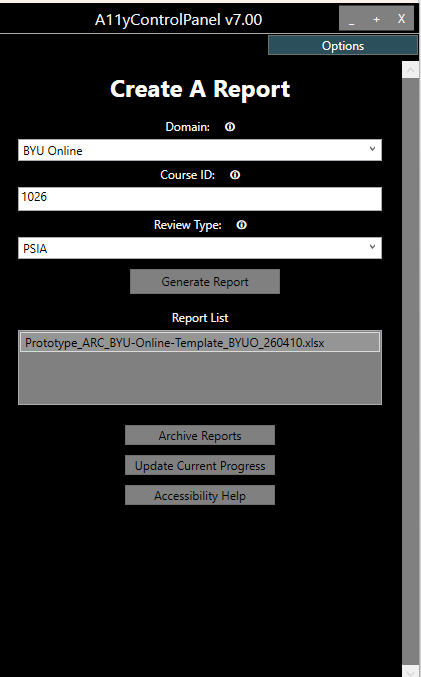
BYU CE Accessibility Panel
The A11y Panel is the program we use to automate about 40% of an accessibility audit. After being given correct filepaths and canvas API tokens, this program has logic to scan HTML for many possible accessibility issues we often find in courses.

How to install the Accessibility Panel on a work computer
- Go to “N:\IS\Quality Assurance\ACCESSIBILITY”, open the
AccessibilityPanelfolder, and run theshortcut.exefile or the ‘shortcut.ps1’ file depending on what your computer will allow.- Make sure to enter the correct Canvas token for each domain.
- After the
shortcut.exehas finished running, you will find a new shortcut on your screen titledA11yPaneland a new folder titledA11y. Everything theshortcut.exedownloaded is contained on that folder on your desktop. - To run the panel click on the new shortcut titled
A11yPanel- Running the panel will always use the up to date file from the N: Drive
- IF you need to change the tokens after running the setup, you will need to manually edit the options file. Navigate to the
Optionstab in the top right of the window. This will open a text editor we can use to input required values.- Many of values should already be filled in. In order for the panel to generate a report, you will need to enter in your user specific token for each BYU Canvas domain.
- For example
-
"BYUOnlineCreds":  {
                   "BaseUri":  "https://byu.instructure.com",
                   "Token":  "<YOUR-USER-TOKEN-GOES-HERE>"
                   },
-
- Go to
Canvas API Tokenif you are unsure about how to get a Canvas API token for each of the BYU Canvas domains.
How to find the Course ID
The course ID is found in the URL after the domain and the word “courses” (example: https://byu.instructure.com/courses/1026).
To generate report, place the course ID (1026 for the example) in the form field and select “Generate Report”. Remember to select a domain for the course chosen. A report will not be generated unless a domain is selected.
Quick Tips
Opening the Report directory in your folder viewer
The Report folder is in a sub folder of the main A11y folder, specifically C:\Users\*******\Desktop\A11y\Reports. A quick way to open this folder is to click on the Report List heading above the reports on the Accessibility Panel’s user interface.
Help Filling out the Panel fields
All of the fields in the panel’s interface contain informational tooltips to aid in the correct filling out of the fields. There is a small (i) icon that, when clicked, will show the corresponding tooltip for that field.
Prototype Reviews
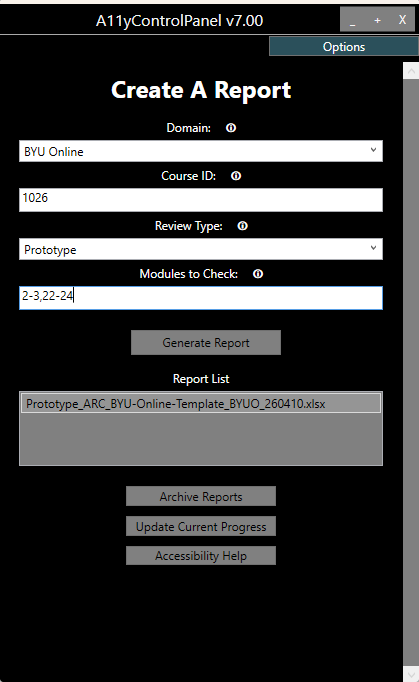
The Prototype Review has an extra field to specify which of the modules on the course are to be reviewed. Format the modules in one of the following ways: “All” to review all modules, 1-2 for modules one and two, or 2, 5-7 for module 2 and modules 5 through 7. Remember to use the module counter tool or to corrctly manually calculate the module numbers, given that there is often a Getting Started Module that is technically module 1, even if a later module is titled Module 1.
Page Quick Reviews
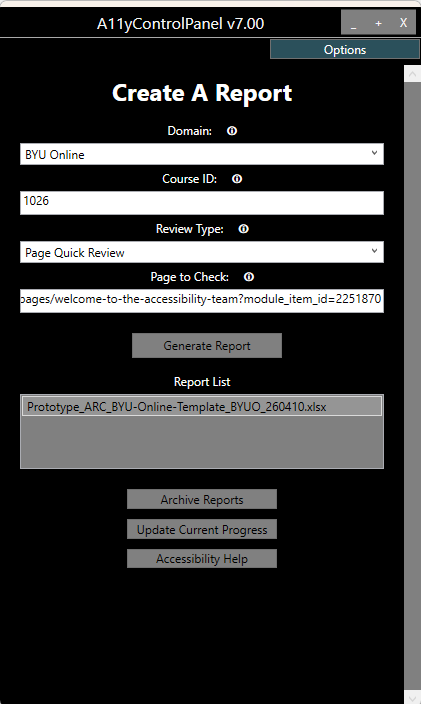
The new Page Quick Review allows you to review a single page. To do so, there is also an extra field. You must still type in the course code, but you must also paste in the entire page url into the Page URL field. Open the page in a browser and just copy over the entire link, (example: https://byu.instructure.com/courses/1026/pages/welcome-to-the-accessibility-team?module_item_id=2251870)
Canvas API Token
Before you can create any reports for a canvas course you need an access token.
- Go to the canvas domain you want a token for (such as https://byu.instructure.com/).
- Go to
Account(top left corner). - Go to
Settings. - Under section called
Approved IntegrationsclickNew Access Token. - Set an expiration date or leave it blank for no expiration. Name it whatever you want.
- Copy paste generated token into the correct field in the options tab of panel.
- If you lose it the token you cannot get it back. Just delete it and create a new one.
Review Process
- Receive Course to review.
- Run Report Generator through the Command Panel GUI.
- Briefly review generator excel report.
- Go through course by hand and add findings to the report previously generated.
- Fix findings and report completed items (update the excel report continuously).
- Return accessibility review.
High level Pseudo Code
BEGIN
CreateReport() (WPFCommandPanel/GenReportEvents.cs)
    Test conditions of course (WPFCommandPanel/GenReportEvents.cs, CanvasAPI.cs)
        IF conditions not met THEN
            Report not generated, Error Thrown
        ENDIF
    Create data structure (RGeneratorBase.cs)
    FOR each page
        Find accessibility issues (A11yParser.cs)
        Get document information (DocumentParser.cs)
    ENDFOR
    Translate data found to report using excel template (CreateExcelReport.cs)
    Return Report (WPFCommandPanel/GenReportEvents.cs)
END
Project Files and Short Descriptions
- WPFCommandPanel/GenReportEvent.cs
CreateReport()class serves as main function and Initiation of the report generation process. It contains the parent algorithm.- A11yParser.cs
- This files contains the logic for finding the accessibility issues. It is the “meat” of the report generator. A list of automated findings is found in
A11yParser Logic. - DocumentParser.cs
- The Document Parser is a class of methods used to parse through documents and gain their information.
- CreateExcelReport.cs
- Converts findings from A11yParser, MediaParser, and DocumentParser into rows in the Excel Accessibility Review Template (Sheet: Accessibility Review) using a data structure from RGeneratorBase.cs.
- PanelOptions.cs
- File/dir paths & user data
- CanvasApi.cs
- classes to hold canvas info
- CourseDataStructures.cs
- translates canvas data into a usable format
- SeleniumExtensions.cs
- Selenium - used to find media data by traversing the HTML.
- StringExtensions.cs
- Helpful String Methods. Splits strings into useful information.
A11yParser Logic
Automated Findings
Below is a list of the automated issues found by the report Generator. In the A11yParser file methods for each top level issue is called in the ProcessContent() function. The second levels are found using if/else statements in each individual method (i.e. ProcessLinks, ProcessColor, etc.) in the A11yParser class.
- Links
- Empty Link tag
- Broken Internal Link
- Broken Link
- Invisible Link with no text
- Poor Link Naming
- Images
- Title on image
- Empty Alt Text
- Banners with unneccessary alt text
- Insufficient alt text
- Alt text contains filenames
- LaTex in IS HS Course
- Paragraphs
- HTML Lists not formatted
- Table
- Stretched Cells
- No Headers
- No scope attributes
- Empty table
- Complex tables
- Iframes
- Iframe has no source
- Iframe has no aria-label
- Iframe aria-label in nondescriptive
- Iframe Video has no transcript
- BrightcoveVideoHTML
- Brightcove Video has no Transcript
- Headers
- Invisible Header
- Headers out of Order
- VideoTags
- Broken Video Link
- No Video Transcript
- Flash
- Flash Element is unaccessible
- MathJax
- MathJax needs an aria-label
- MathJax label is not descriptive
- Onclicks
- Onclicks are not accessble
- AudioElements
- No transcript for Audio Element
- Color
- Color Contrast is too low
This is the current organization of accessibility issues we have so far. That being said, this organizational list is subject to change and we plan on implementing a better organization soon.
How to setup code editing for this project:
Open up the A11yPanel.sln file from the “N:\IS\Quality Assurance\ACCESSIBILITY\AccessibilityPanel”. To push an update, push your changes to the github using git add, git commit, and git push commands in the powershell. Then run the setup.exe file which will pull the latest changes from the github and recompile it on the N: Drive.
Known Possible Errors
These are known errors that have been detected and solved for the BYU CE Accessibility Panel. For the sake of debugging an error log is created on local machines for each panel. That error log is located at .../Desktop/AccessibilityTools/A11yPanel/Log.txt.
The Color Contrast Function is known to occasionally incorrectly mark valid contrast as incorrect